How to Get Your Instagram Password on Android
Got stuck with your Instagram password on Android? How to create a secure password in Chrome, save passwords, and use password managers.
Introduction
In case you have failed to remember your Instagram password or just want to see a previously saved password on your Android phone. This guide demonstrates how to do it safely and legally. Do not attempt to get into the account of another person – that is all illegal. To regain access to your personal account, see your saved passwords and secure your Instagram. Follow the following steps.
1. Recover your password using Instagram (best if you forgot it)
- Open the instagram application on your Android phone.
- On the log in screen use the tap Get help signing in (or Forgot password?).
- Type in your username, email address or phone number linked with the account and tap Next /Send Login Link.
- The message on Instagram is on your email or SMS. It will consist of a link or security code.
- Click the link or type the code in order to change your password. Ensure that you design a new and hard password and store it in a password manager.
- In case you are unable to reach the email address or phone:
- Tap Need more help? on the recovery screen and go through the process of verification by Instagram. They can request an email address that you used before, or identity documents.
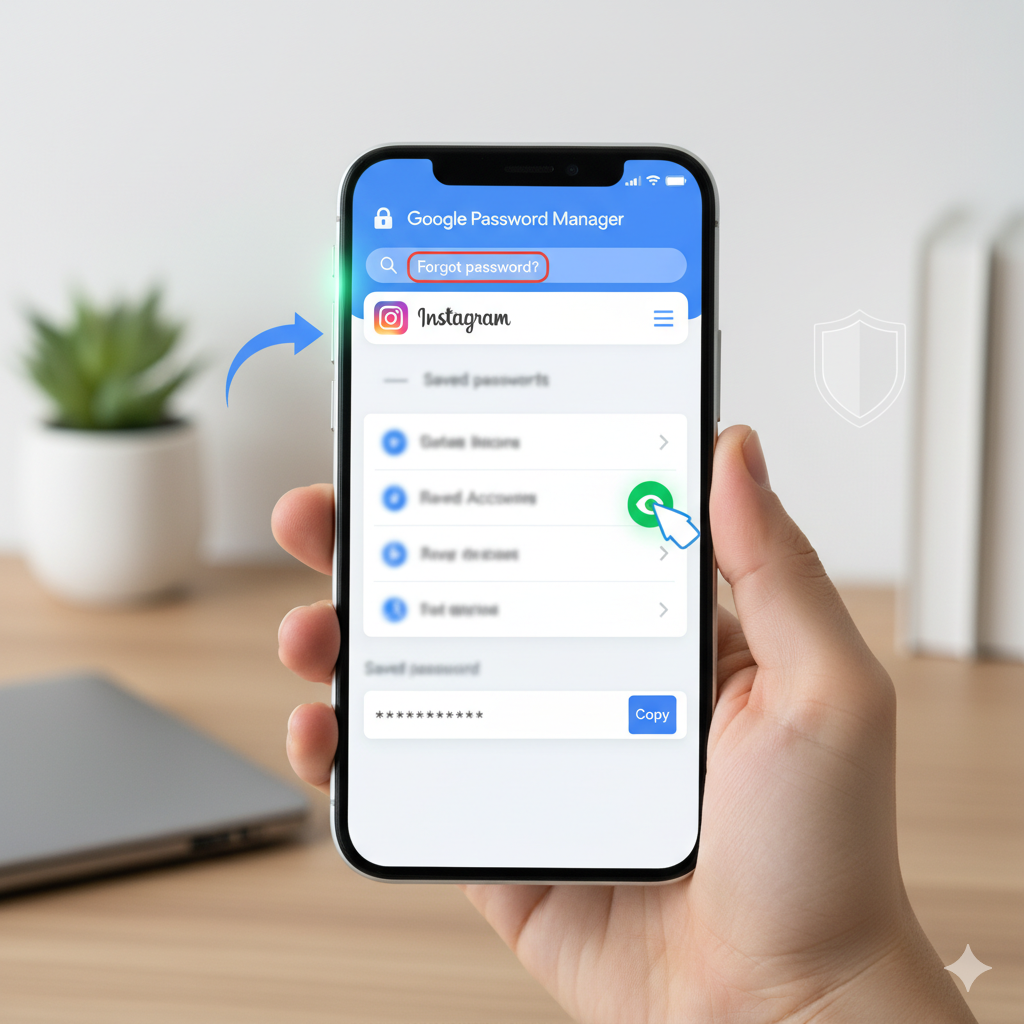
2. View a saved Instagram password in Chrome (if you previously saved it)
In case you had saved your Instagram password in Chrome or in Google account on your Android, you can see it:
Via Chrome app
- Open Chrome → three dots (menu) Settings Passwords.
- Click on instagram.com or your Instagram name.
- Tap the entry that you saved, authenticate using your PIN, pattern or fingerprint.
- Once verified you can access the password or replicate it.
Through Google Password Manager (web).
- Visit page passwords.Google.com (or in Chrome: Settings Password Manage passwords).
- Log-in using the same Google account associated with your android.
- Open instagram.com, open the entry and log in to see the password.
Security information: One should only view passwords on a secure, trusted device. Do not display or duplicate passwords in front of other people in view of your screen.
3. Use a third-party password manager (if you saved your password there)
Provided that you use LastPass, 1Password, Bitwarden, Dashlane, etc.:
- Open your password application.
- Find the Instagram log in entry.
- Authenticate Your master password or biometrics.
- See or save the password, or do the auto-fills of the manager.
In case you can not find the entry, be sure to look at other accounts or vaults that you possibly have.
4. Change your password while logged in
You can change your password: Instagram cannot display your existing password when you are not logged out.
- Open Instagram and go to Profile and tap the three lines and then go to Settings and then Password.
- Type in the password that you have (unless you have forgotten it) and then type in a new one.
In case you forget the user password, visit Forgot password? on the login screen.
If your account was hacked or email changed
- Click Get help signing in and use the flow of hacked-account.
- Check your mailbox to see Instagram messages (e.g. your email address was changed). Click as there are revert this change links.
- Click on Settings, then Security, then the option of Login Activity and log out of the unknown sessions.
- Uninstall suspicious third-party applications: Settings Security Apps and Websites.
- Report to Instagram through Help Center and run through any authentication demands (photo ID, account details).
- Following recovery, 2FA should be turned on as quickly as possible and new passwords should be changed.
Tips to keep your Instagram password safe
- Use a long, unique password (12+ characters with a mix of letters, numbers, symbols).
- Use an authenticator app (Google Authenticator or Authy) for 2FA — more secure than SMS.
- Use a password manager to store and autofill credentials.
- Avoid saving passwords on shared devices; log out after use.
- Don’t give your password to anyone — use official tools for collaboration (Meta Business Suite, Creator Studio).
Quick Troubleshooting
- Email jointly does not come back? Spam/Check Spam, and secondary emails.
- Saved password missing? Make sure you are logged on to the appropriate Google account on the machine.
- Can’t verify identity? Take the steps of Instagram and need more help and submit requested evidence.
Conclusion
Still, Instagram passwords (including your own) can be easily retrieved or viewed on Android with the instagram recovery options, Chrome/google password or a password manager. To avoid any issues in the future, it is always better to secure your device and use 2FA.