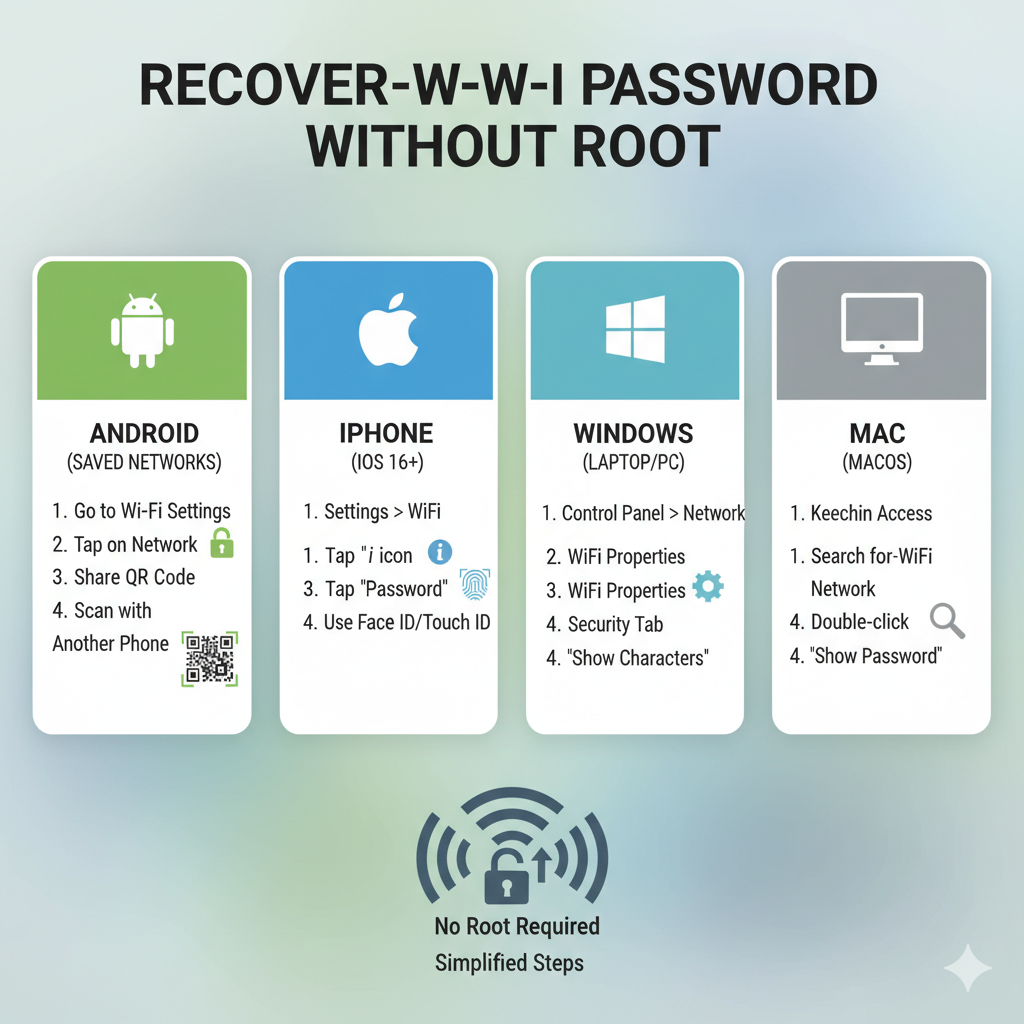
Recover Wi-Fi Password Without Root Steps for Android, iPhone, Windows & Mac
Know how to crack the Wi-Fi password without root in a safe and legal way. Android (QR/share), iPhone, Windows, macOS and router admin panel.
How to get a Wi-Fi password without root — Smart and secure.
Have you forgotten your Wi-Fi password? There is nothing to worry about, it was easy to restore it without rooting your phone. The simplest, legal means of Android, iPhones, Windows, and Mac are listed below. Select the method according to your device and complete the steps.
It is always wise to seek permission before using the Wi-Fi of another person. These are tips that apply to networks one owns or has permission to access.
1. Android — Use the built-in Share/QR feature (Android 10+)
On plenty of Android phones, it is possible to share a saved network using a QR code. The password can be disclosed through QR.
Steps:
1. Go to the open Settings then Network and internet then Wi-Fi.
2. Tap Saved networks or access networks.
3. Tap Share (you might be required to unlock it using PIN/fingerprint).
4. A QR code appears. The password may be in plaintext under or next to it.
5. Otherwise, scan using another phone to connect or use a QR reader that can display the raw text (typically it consists of the following: WIFI:S:SSID;T:WPA;P:password;;).
Supported on: The majority of android phones (stock Android, Xiaomi, Samsung One UI, etc.).
Android — If your phone doesn’t show password text
- Use the second phone to scan a QR code and take note of the password of the connecting device.
- If you have an older Android, then a lot of third party apps require root and therefore unless you root (which is not advisable) then avoid them.
3. iPhone — iOS 16+ (View password directly) & iCloud Keychain
If you have iOS 16 or later:
1. Go to Settings → Wi-Fi.
2. Click the info (i) button beside the network to which it is connected.
3. Swipe Password and scan Face ID / Touch ID / passcode – the password will be displayed.
In case you use iCloud Keychain and are using a Mac:
1. You should open the System Settings on your Mac; Go to Passwords ( Keychain Access in the older MacOS).
2. Search for the Wi-Fi SSID.
3. Click on it and option Show Password. Authenticate when asked.
Supports: iphone, ios 16+ / iphone + Mac, iCloud Keychain.
4. Windows — Use Command Prompt (shows saved Wi-Fi passwords)
Steps:
1. Open Command Prompt, and via Open as an Administrator.
2. Run:
netsh wlan show profiles
This is a list of Wi-Fi networks that have been saved.
3. Identify your network name (SSID), and execute:
netsh wlan profile name=YourNetworkName key=clear.
4. Search through Key Content sub-entries of Security settings – that is password.
Supports: Windows 7, 8, 10, 11 (when the networks are saved on the same PC).
5. macOS — Use Keychain Access
Steps:
1. Click on Finder Applications Utilities Keychain access.
2. Search your Wi-Fi SSID.
3. Click twice on the item and make sure that the Show password option is checked and type in your Mac login password when asked.
4. A revelation of the password will occur.
Fixes: Macs which remember the Wi-Fi password in Keychain.
6. Router Admin Page — Check the Wi-Fi password directly
In case you have access to the router (through Ethernet or logging in to the Wi-Fi management of the router):
1. Connect to the router (wireless or wired).
2. Make a browser and type router IP: it is usually either 192.168.0.1 or 192.168.1.1.
3. Enter router username and password (located on the router sticker, or enquire of the owner).
4. Check under the Wi-Fi Settings / Wireless. The WPA/WPA2 key/passphrase will be readable or editable.
Defaults on the router label or a query to the owner should work in the event that you do not know the login of the administration.
7. Backup & Restore (if you have backups)
In case of device backups (Google Backup / iCloud), you can restore a backup that has a password saved before the time when you have saved it. Which will restore the network to your device. This is a more cumbersome alternative and will have an impact on other data- be very careful.
Quick Troubleshooting
– In case all these are not working, reboot the router (assuming that you own it) to default, and configure a different Wi-Fi password.
– In case the network is that of other people, then ask the owner of the network, it is the most convenient and simple way to do it.
FAQs
Q4: Can you recover the Wi-Fi password belonging to another pe